Intended Audience: Professional Learners/Educators, MiRegistry Members
About
After a learner finishes their course, it will be transferred from the "Active Courses" tab on the Professional Learning Portal (PLP) Dashboard to "Completed Courses". Once it's in the "Completed Courses" tab, learners may download their certificate of completion.
Instruction
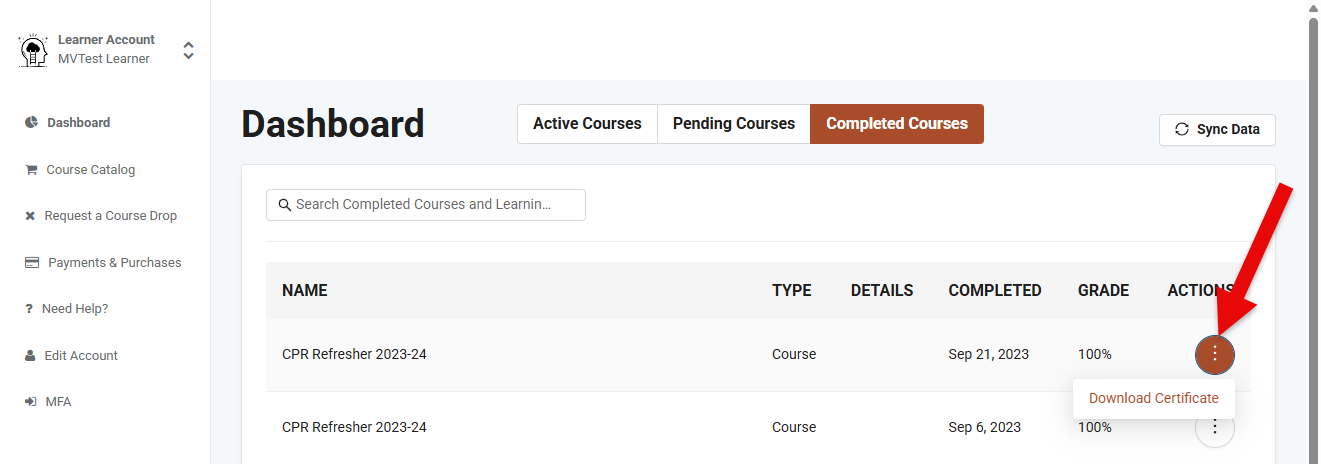
- First, select the "Completed Courses" tab from the PLP Dashboard.
- Next, select the menu option within the "Actions" column and then choose Download Certificate.
Don't see your completed course?
The "Completed Courses" tab may not immediately display a completed course after you finish it. Here are the reasons why this could be:
- You may have incomplete assignments. Checkmarks in the grade book only indicate that the lesson has been accessed, not completed. To check course completion, check the grade book in the course's "Course Links" tab.
- The instructor has not released a grade. Grades are released by the instructor, who may choose to release them only when all learners have finished the (blended or online facilitated) course.
- You may need sync the data. To perform a data sync with the LMS, click the “Sync Data” button located in the top-right corner of the page. The most recent sync time is also displayed. This feature helps ensure that course completions are updated and visible.

Educators seeking SCECH Credits: Please refer to Course Completions in MOECS for additional support and information.
Michigan Early Childhood and School-Age Workforce seeking CEUs: Please refer to Course Completions & CEUs for additional support and information.