Intended Audience: Professional Learners/Educators, MiRegistry Members
About
Learners with a Professional Learning Portal (PLP) account can opt to register for a course. This guide explains the registration process after logging into their PLP account.
Learners must be logged into their account to register for a course. In the event a learner has not logged in, refer to the Login article. If a learner has not yet created an account, refer to the Create An Account article.
Learners may also reference our Purchasing Terms & Conditions.
Instruction
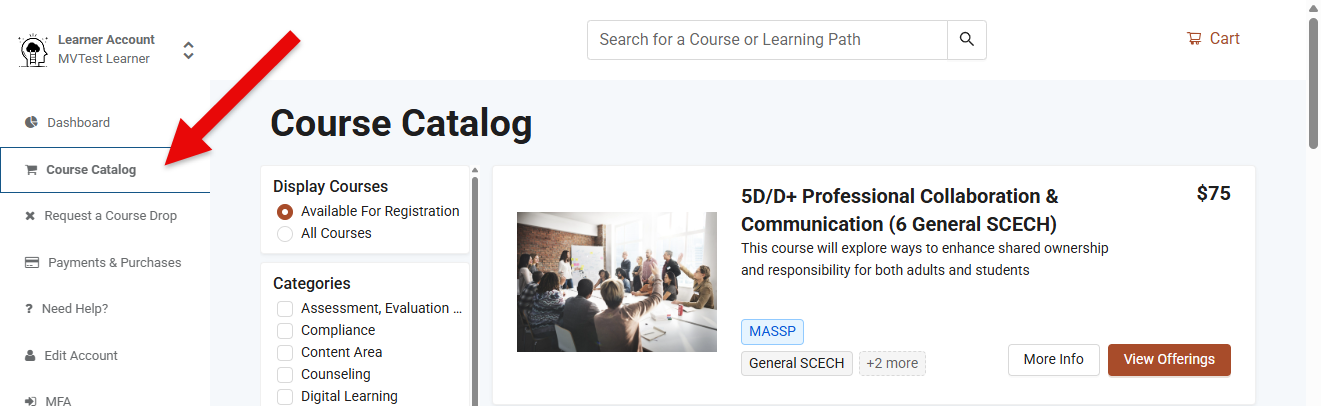
- First, tap Course Catalog from the left menu.
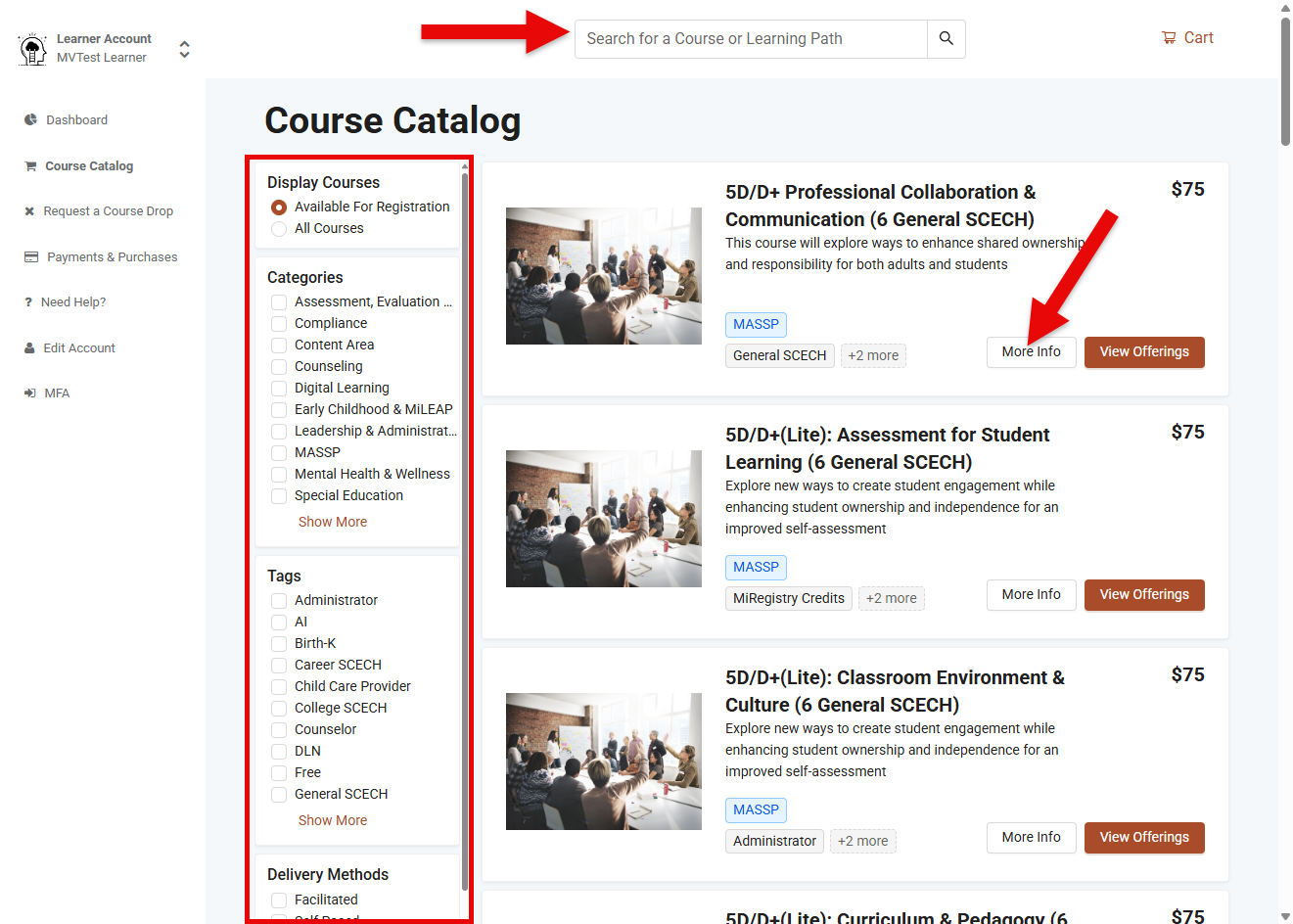
- Next, use the filters (i.e. Categories, Tags, Delivery Methods) to narrow search results or use the Search filed to locate a specific course of interest. After locating the course, learners can click the More Info button in the lower-right corner of the course tile to access additional information.
- At this point, learners may tap the Add to Cart button on the bottom-left corner of the Enrollment Options section.
Note: Learners may register for multiple courses by closing this page and returning to the catalog before proceeding to the next step.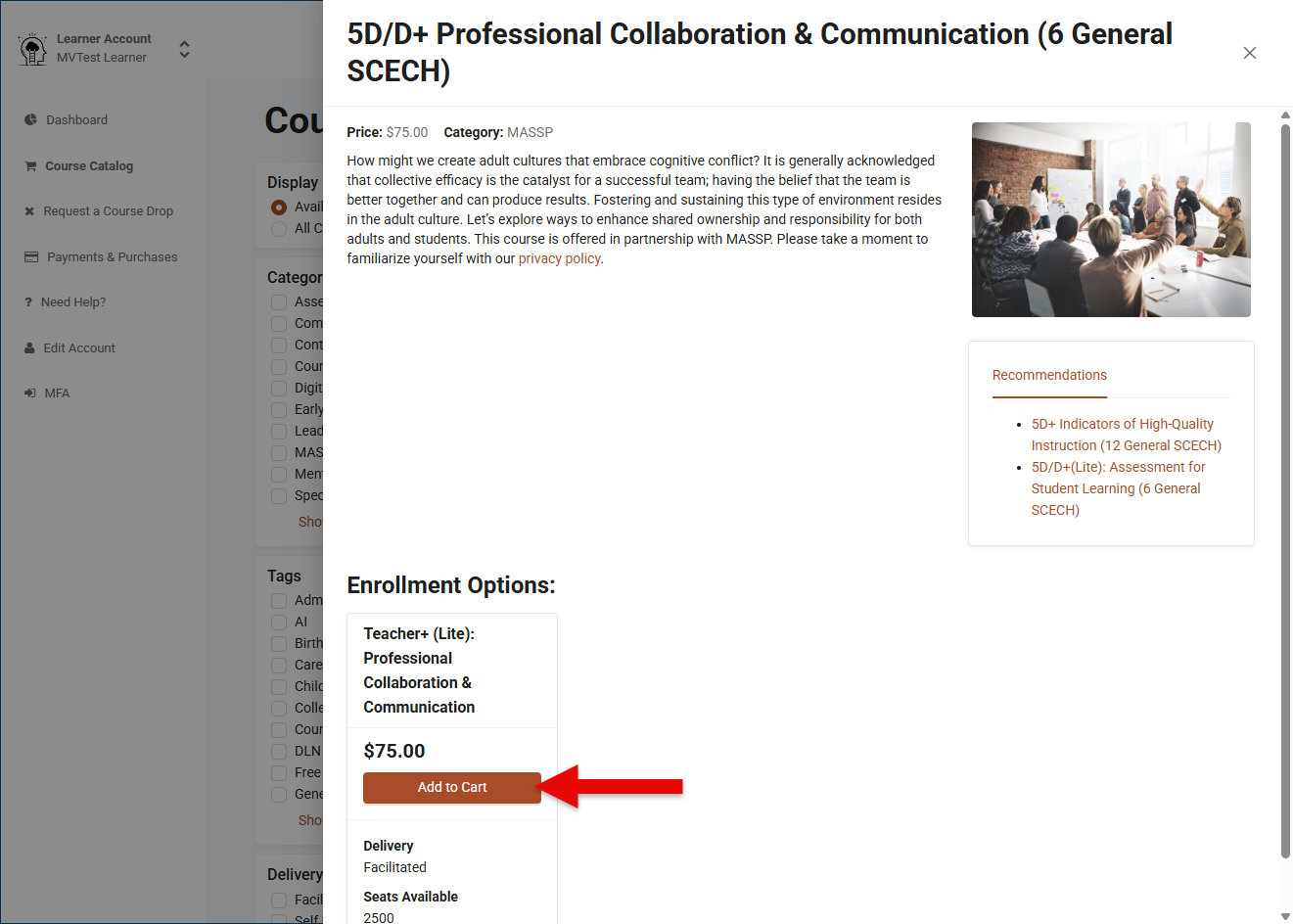
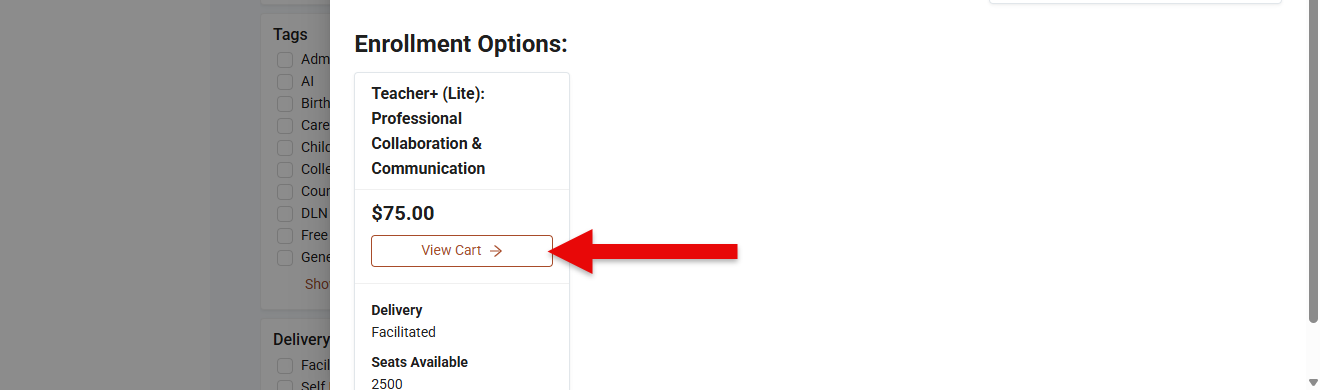
- Next, tap the View Cart button to complete the registration process.
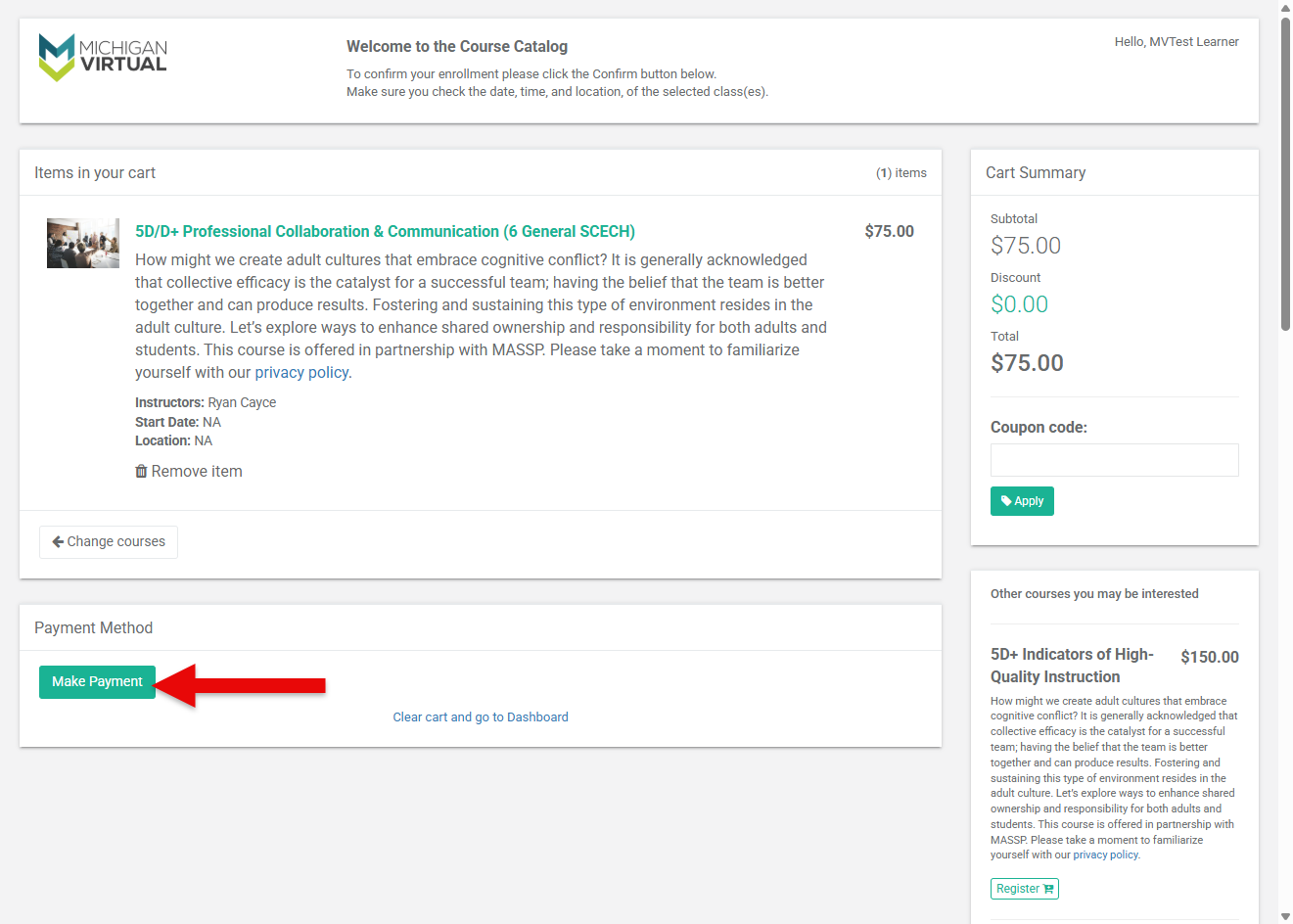
- To complete the purchase of the course, tap the Make Payment button located in the Payment Method section at the bottom of the page.
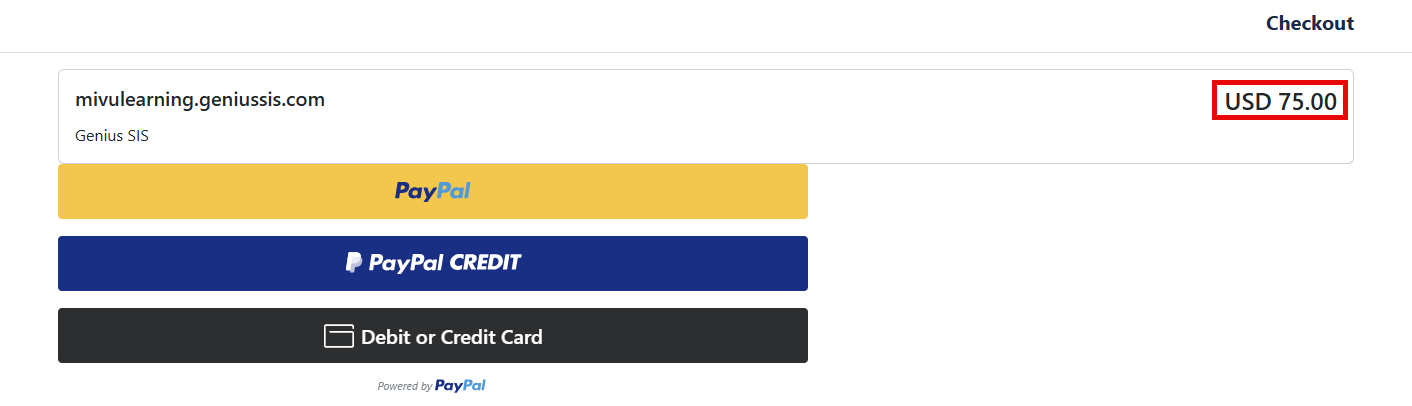
- Select the applicable payment method and follow the payment prompts.
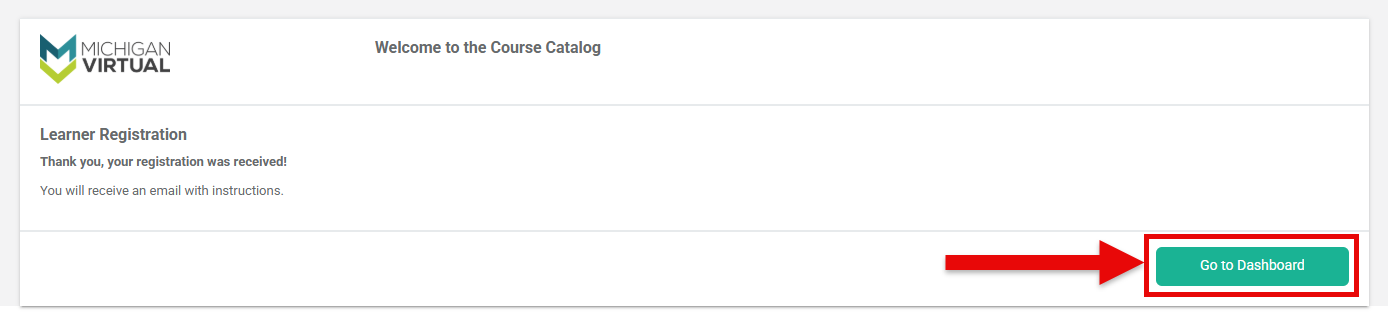
- After making payment, the confirmation message will appear. Tap the Go to Dashboard button to access the course.