Important: The "Student Pacing Tool" feature will not be available in all Michigan Virtual courses. If students do not see this option in their course, they should refer to the Pacing Guide article for guidance on classes without this feature.
Intended Audience: Students
About
This article explains how students can access and use the Brightspace Pacing Tool to track course progress, stay on target with personalized submission dates, and understand their performance using the "Grade To Date" feature. It also describes pacing flags and how to download a personal schedule.
Instruction
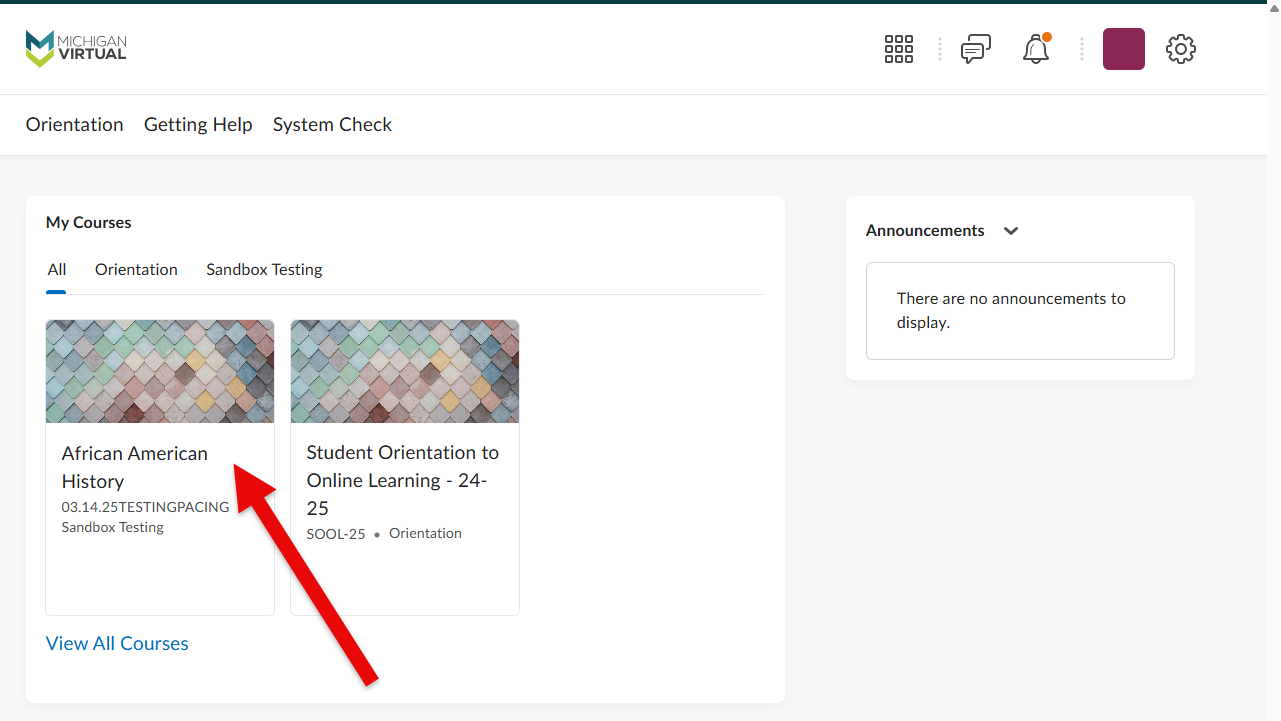
- First, from the Brightspace homepage, select a course from the “My Courses” section.
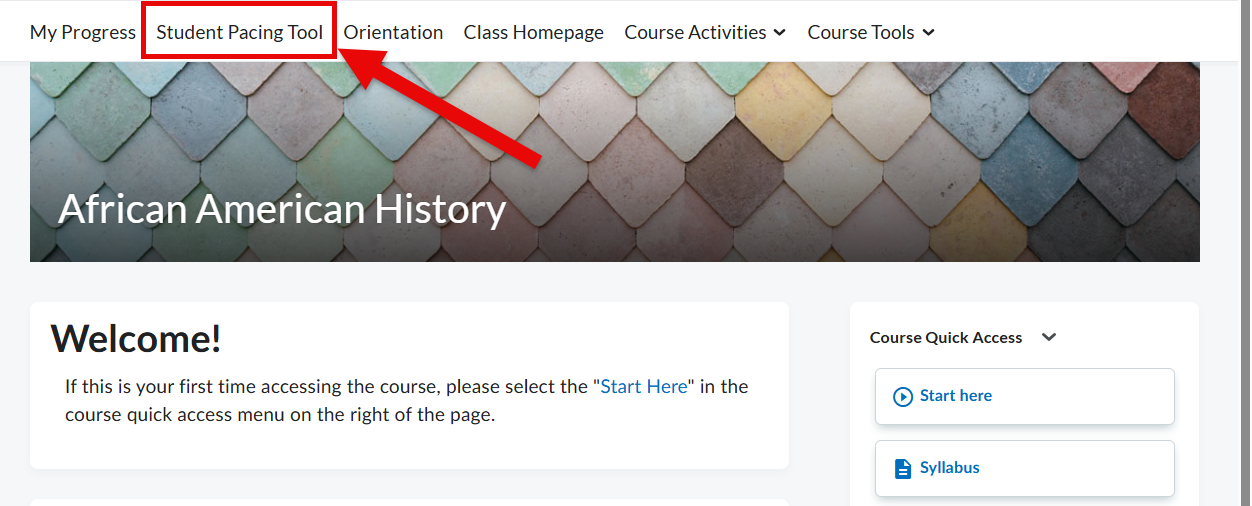
- Next, tap the Student Pacing Tool option from the top navigation menu on the Classroom Homepage.
At this point, the “Student Pacing Tool - Student View” will display a list of assignments. This allows students to view each assignment, its due date, submission date, number of days late, points and grade.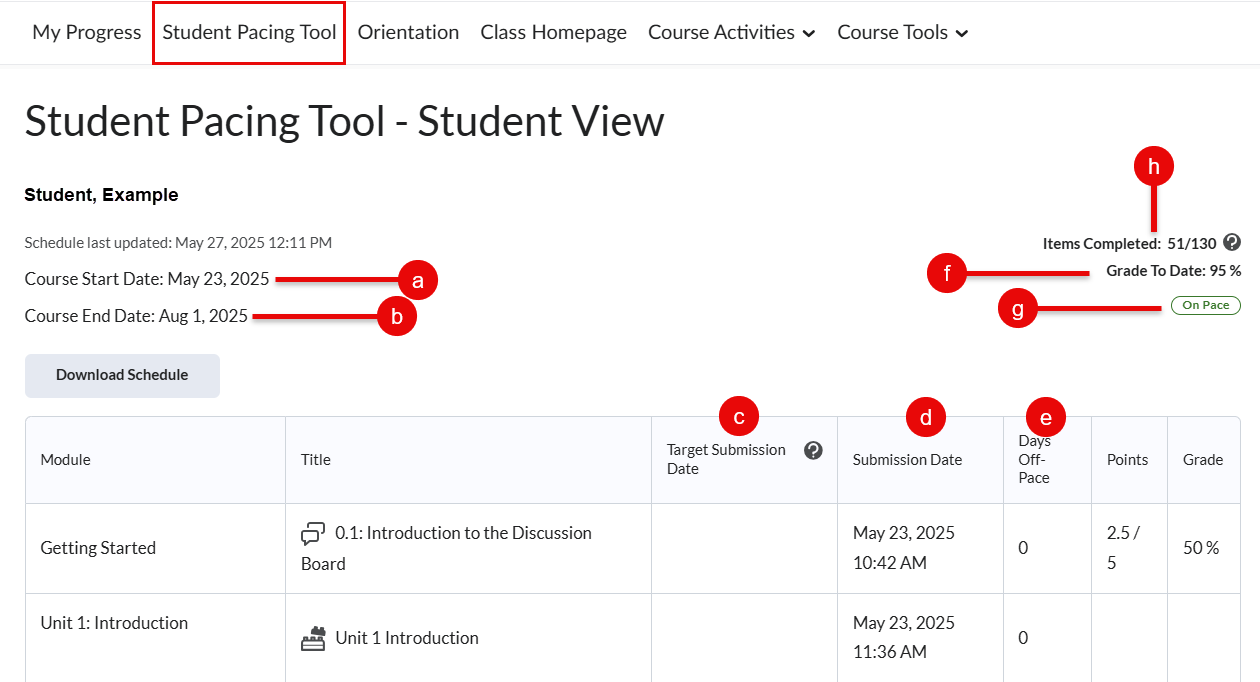
- Course Start Date: Determined by the course start date or the student’s enrollment date, whichever is later. (Exception: AP courses always use the course start date.
- Course End Date: The student-specific course end date.
- Target Submission Date: Automatically calculated deadline based on the course start and end date
- Submission Date: The date the activity was actually submitted.
- Days Off Pace: Number of days an activity is late beyond the target submission date. This will appear blank if the due date is today or in the future.
- Grade To Date: Points Earned ÷ Points Attempted; gives a real-time view of progress. Displays “Not Available” if no graded work has been submitted.
- Flags:
- Due Today: Due within 24 hours.
- Overdue: At least one item is late; this stays visible throughout the course.
- On Pace: All work is current.
- Total items completed / Total items to complete in course
Downloading the Schedule
Tap the Download button to export the personalized schedule as a PDF.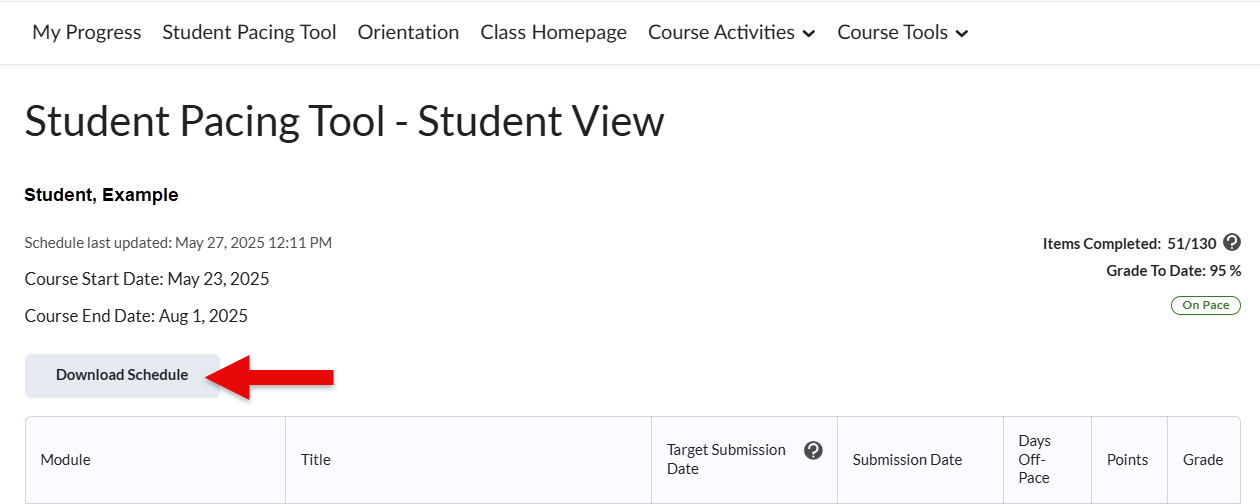
FAQs
- Why does Grade To Date show “Not Available”?
No graded submissions exist yet. - Why does the overdue flag stay visible?
It's designed to remain for tracking support needs. - What if the schedule doesn’t load?
Refresh the page to prompt loading. - Is the tool accessible?
Yes, it meets accessibility standards, except it does not support ReadSpeaker. - Can my teacher download my schedule?
Yes. Instructors, mentors and students and mentors have the ability to download student schedules. - Why don’t Discussion Based Assessments (DBAs) have a submission date listed?
DBAs are conducted outside the Brightspace submission system, so no date is shown. - What happens when a student receives an automatic zero?
If a deadline passes without submission, an automatic zero is added and affects the Grade To Date. If the assignment is later submitted and graded, the zero is replaced with the actual grade. - Why does the student's schedule appear to be out of order?
Either the pacing schedule has been created or revised after a student has already done work in the course.
Items are listed on the schedule in the order they are meant to be encountered in the course. When the schedule is generated on the student's start date, the Target Submission Dates are evenly distributed throughout the course in the same ascending order as the list of items. This is the ideal situation and it is why we encourage instructors and mentors to visit a course's pacing tool often during the enrollment period of the term, as these visits initiate the creation of student schedules.
Why do the target submission dates seem unevenly distributed?
For instance, you see many Target Submission Dates clustered in a very short period at the beginning of the course, but spread out much further at the end.
When this occurs, look for the Schedule Last Updated date. Most likely, the schedule was created/updated at some point after the start date, forcing more items to be due between that date and the halfway point milestone of the course than in the second half.