Intended Audience: Students, Guardians
Introduction
The pacing tool replaces traditional pacing documents by providing students with a customized assignment schedule based on enrollment and end dates. It streamlines planning, simplifies grading, and enhances communication among students, teachers, and mentors. This tool ONLY applies to courses in Brightspace. Essentials credit recovery courses housed in the Buzz learning management system do not have this pacing tool.
Why The Change
Online learning success relies on steady pacing, starting assignments early, and progressing consistently. Research from Michigan Virtual confirms that students who stay on pace perform better and feel less stressed. Recognizing this, we introduced enhanced pacing tools and clearer grade reporting.
Although the new pacing tool provides target submission dates and the system automatically enters a “zero” into the gradebook if an assignment is not submitted by the target date, students still can work at their own pace and have the ability to submit work after the zero grade has been submitted.
Frequently Asked Questions
- Core Features
- What is the new Student Pacing Tool in online courses and how does it work?
- What are Target Submission Dates?
- What happens when I miss a Target Submission Date?
- Why am I receiving automatic zeros, when I miss a Target Submission Date?
- Will my instructor need to reopen assignments that receive automatic or manual zeros to allow me to complete the assignment?
- How are my assignment submissions displayed on the Student Pacing Tool?
- Why are there due dates for things that aren’t graded assignments or assessments?
- Grading: Grade to Date
- What is "Grade to Date" and how is it calculated?
- What is the difference between Grade (Grade to Date) and Overall Score?
- What if I am working ahead of my pacing guide? Will that throw off the Grade to Date?
- Why am I receiving automatic zeros, when I miss a Target Submission Date?
- Do automatic or manual zeros count as a completed assignment?
- Flags & Visual Indicators
- Grading Policy Clarifications
- Student View of the Student Pacing Tool
- Troubleshooting & FAQs
- Do credit recovery courses in the Buzz learning management system have a pacing tool?
- What should I do if I get a "Something Went Wrong" error?
- Why does "Grade to Date" say "Not Available"?
- What happens if I turn in an assignment after receiving an auto-zero?
- Can I download my pacing guide?
- Why am I receiving automatic zeros, when I miss a Target Submission Date?
- Why does my gradebook item appear overdue even though the student has submitted it?
- Why does the student's schedule appear to be out of order?
- Why do the target submission dates seem unevenly distributed?
Core Features
What is the new Student Pacing Tool in online courses and how does it work?
The pacing tool replaces traditional pacing documents by providing students with a customized assignment schedule based on enrollment and end dates. It helps students stay on track with smarter, real-time pacing guidance and provides clearer course progress data, to enhance course progress communication among students, parents, mentors, and teachers. For further information, please refer to the Student Pacing Tool.
What are Target Submission Dates?
These are automatically generated deadlines for each assignment based on your enrollment and end date. They ensure pacing toward on-time course completion.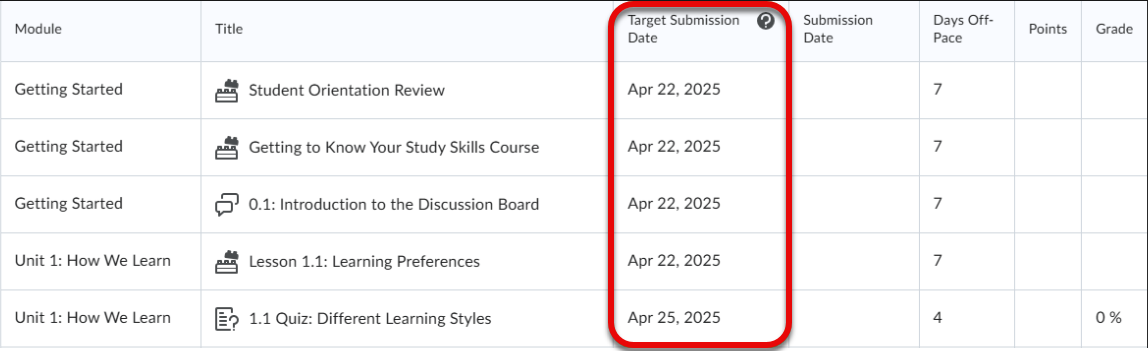
Does this apply to credit recovery courses in the Buzz learning management system?
No. Buzz does not have a pacing tool. The ability to test out of lessons, assignments, and quizzes makes applying a pacing tool far too complicated as the assignments and quizzes each student needs to complete can change based on pre-test scores.
What happens when I miss a Target Submission Date?
The system records an automatic zero (0%) for that assignment. When you complete the assignment, the zero will go away.
Why am I receiving automatic zeros, when I miss a Target Submission Date?
The Student Pacing Tool uses automatic zeros to show what a student’s grade would look like if they did not complete missing work, similar to how grades reflect missing assignments in a traditional classroom. This provides a realistic view of current progress. Be assured that you can still submit overdue assignments for credit through the course end date and your assignment grade will update once they are scored.
Will my instructor need to reopen assignments that receive automatic or manual zeros to allow me to complete the assignment?
No. Because nothing was submitted, there is nothing to clear out. Students can submit ‘zero’ assignments without any instructor intervention.
How are my assignment submissions displayed on the Student Pacing Tool?
A: They include the submission date, points earned, and a percentage. Below you will see a student submission followed by an automatic zero.
Why are there due dates for things that aren’t graded assignments or assessments?
Lesson materials are included in the pacing tool because they take time for students to complete and are factored into the weekly pacing schedule along with graded work.
Grading: Grade to Date
What is "Grade to Date" and how is it calculated?
It reflects real-time progress by dividing points earned by the total points assigned to date (not the total points in the course).
What is the difference between Grade (Grade to Date) and Overall Score?
- Grade to Date: Represents the grade a student has earned based only on assignments that have been due so far. It is similar to the grade a student would see in a traditional classroom at that point in time.
- Overall Score: Represents the student’s final grade, including all assignments possible in the course, even those not yet due. This represents the score a student will receive if no further work is completed.
Both the Grade to Date and Overall Score are available in the Student Learning Portal (SLP) Gradebook.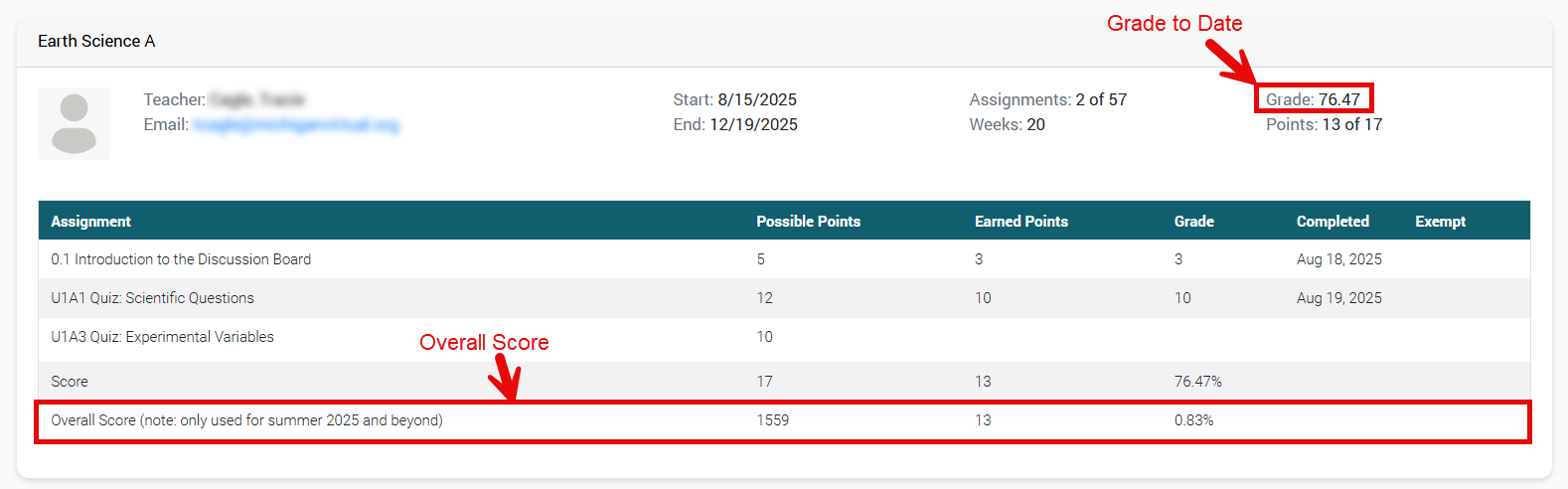
What if I am working ahead of my pacing guide? Will that throw off the Grade to Date?
If a student works ahead, the system will adjust the overall points possible (based on what was due and what has been completed past that point) and points earned into the calculation, ensuring that scores do not exceed 100%.
Why am I receiving automatic zeros, when I miss a Target Submission Date?
The Student Pacing Tool uses automatic zeros to show what a student’s grade would look like if they did not complete missing work, similar to how grades reflect missing assignments in a traditional classroom. This provides a realistic view of current progress. Be assured that you can still submit overdue assignments for credit through the course end date and your assignment grade will update once they are scored.
Do automatic or manual zeros count as a completed assignment?
Yes, the SLP counts anything with a score, zero or not, as a completed assignment.
Flags & Visual Indicators

What does the "Due Today" flag mean in the Student Pacing Tool?
The "Due Today" flag appears when a course activity is due within the next 24 hours. It serves as a helpful reminder for students to complete tasks that are coming up soon. Once there are no activities due in that timeframe, the flag will automatically disappear.
What does the "Overdue" flag indicate?
The "Overdue" flag is displayed when at least one required activity has passed its target submission date without being turned in. Even if the student later submits the assignment, this flag remains visible for the rest of the course as a record that the item was submitted after the recommended date.
Grading Policy Clarifications
Are students penalized for late work in flex-paced (non-AP) courses?
No. They may submit late work without penalty through the end of the term. Assignments will still show as "off pace."
What about AP courses?
AP courses retain hard due dates. Teachers will apply penalties manually.
Will instructors need to reopen assignments that receive automatic or manual zeros to allow students to complete the assignment?
No. Because nothing was submitted, there is nothing to clear out. Students can submit ‘zero’ assignments without any instructor intervention.
Why am I receiving automatic zeros, when I miss a Target Submission Date?
The Student Pacing Tool uses automatic zeros to show what a student’s grade would look like if they did not complete missing work, similar to how grades reflect missing assignments in a traditional classroom. This provides a realistic view of current progress. Be assured that you can still submit overdue assignments for credit through the course end date and your assignment grade will update once they are scored.
Student View of the Student Pacing Tool
How do I access the pacing tool?
Students log into Brightspace with their credentials, select the course they want to view, and choose 'Student Pacing Tool' from the course navigation bar. Refer to our Student Pacing Tool article for further help.
Can I download my pacing guide?
Yes. Tap the Download Schedule button on your Student Pacing Tool to export your personalized schedule as a PDF.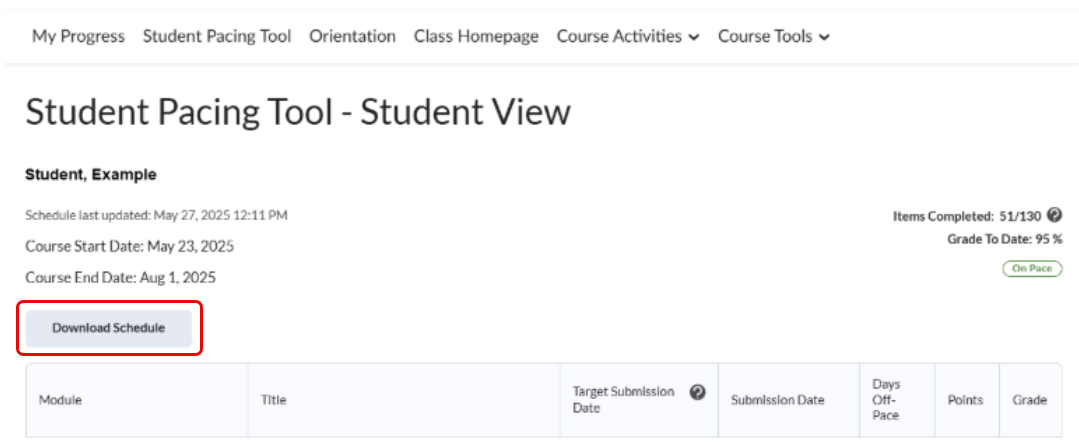
Can Guardians see the pacing tool?
No. Guardians do not have access to the Student Pacing Tool. They will need to work with their student to view or print the individualized pacing guide if needed.
Troubleshooting & FAQs
Do credit recovery courses in the Buzz learning management system have a pacing tool?
No. The ability to test out of lessons, assignments, and quizzes makes applying a pacing tool far too complicated as the assignments and quizzes each student needs to complete can change based on pre-test scores.
What should I do if I get a "Something Went Wrong" error?
Follow these steps:
- Refresh your browser.
- Still not working? Clear your cache/browsing data and restart your computer.
- Still not working? Submit a Customer Care Ticket.
Why does "Grade to Date" say "Not Available"?
No assignments have been submitted or graded yet.
What happens if I turn in an assignment after receiving an auto-zero?
The zero is replaced by the new score, but the overdue flag remains.
Can I download my pacing guide?
Yes. Tap the Download Schedule button on your Student Pacing Tool to export your personalized schedule as a PDF.
Why am I receiving automatic zeros, when I miss a Target Submission Date?
The Student Pacing Tool uses automatic zeros to show what a student’s grade would look like if they did not complete missing work, similar to how grades reflect missing assignments in a traditional classroom. This provides a realistic view of current progress. Be assured that you can still submit overdue assignments for credit through the course end date and your assignment grade will update once they are scored.
Why does my gradebook item appear overdue even though the student has submitted it?
If a submission is cleared or reset, it may cause the gradebook item to appear overdue until the resubmission is complete.
Why does the student's schedule appear to be out of order?
Either the pacing schedule has been created or revised after a student has already done work in the course.
Items are listed on the schedule in the order they are meant to be encountered in the course. When the schedule is generated on the student's start date, the Target Submission Dates are evenly distributed throughout the course in the same ascending order as the list of items. This is the ideal situation, and it is why we encourage instructors and mentors to visit a course's pacing tool often during the enrollment period of the term, as these visits initiate the creation of student schedules.
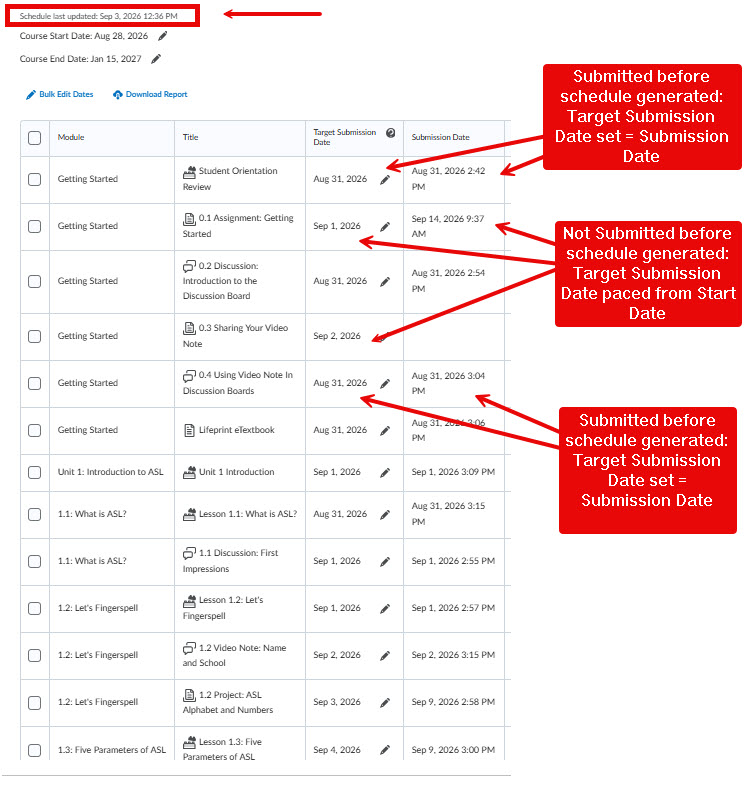
Scenario #1 - The student completed work before the schedule was generated, but there were no changes to the start/end date:
The student completes the work, which is populated in their future schedule as both their Submission Date and Target Submission Date.
Example:
- The Start Date for the course is 8/28.
- On 8/31 the student is enrolled, enters the course, does not access their pacing schedule and skips Unit 1 work to begin immediately working on items in Unit 2. Because this work was completed before their pacing schedule is generated, anything they accessed/submitted from Unit 2 will receive Submission Dates and Target Submission Dates of 8/31.
- The schedule is then first accessed/generated on 9/3.
- On this schedule, you will see
- unsubmitted Unit 1 work with Target Submission Dates scheduled according to how they fall between the start/end dates
- submitted Unit 2 work with Target Submission Dates of 8/31.
- Tip! The appearance of disorder will be especially obvious if a student skips around in the course or has visited many content items before their schedule generates.
Scenario #2 - The student completed work after the schedule was created but before their start and/or end date changed:
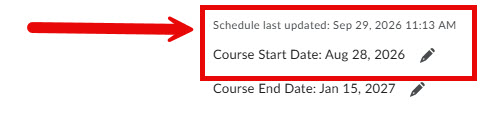
The Target Submission Date that was present at the time that the student submitted the work remains for those items, while it is recalculated for unsubmitted work. This can apply to anything completed before the “Schedule last updated” date.
Why do the target submission dates seem unevenly distributed?
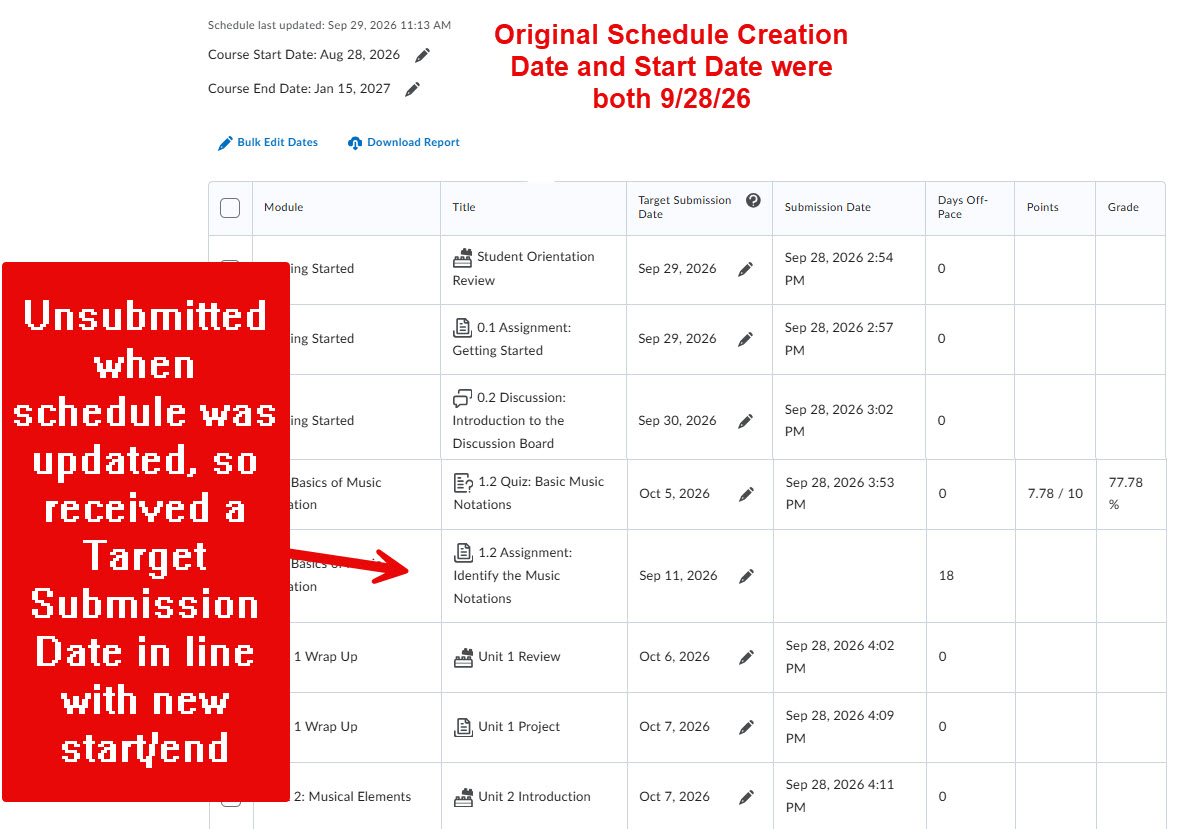
For instance, you see many Target Submission Dates clustered in a very short period at the beginning of the course, but spread out much further at the end.
When this occurs, look for the Schedule Last Updated date. Most likely, the schedule was created/updated at some point after the start date, forcing more items to be due between that date and the halfway point milestone of the course than in the second half.